Docker Container Basics
What is Docker?
Before Docker, deploying software was fragile. Code worked on a developer's laptop but failed on the server because of different OS versions, missing libraries, or conflicting dependencies — the classic "works on my machine" problem.
Docker solves this by packaging your application and all its dependencies into a single, portable unit called a container. Containers run identically on any machine that has Docker installed — laptop, CI server, or cloud VM.
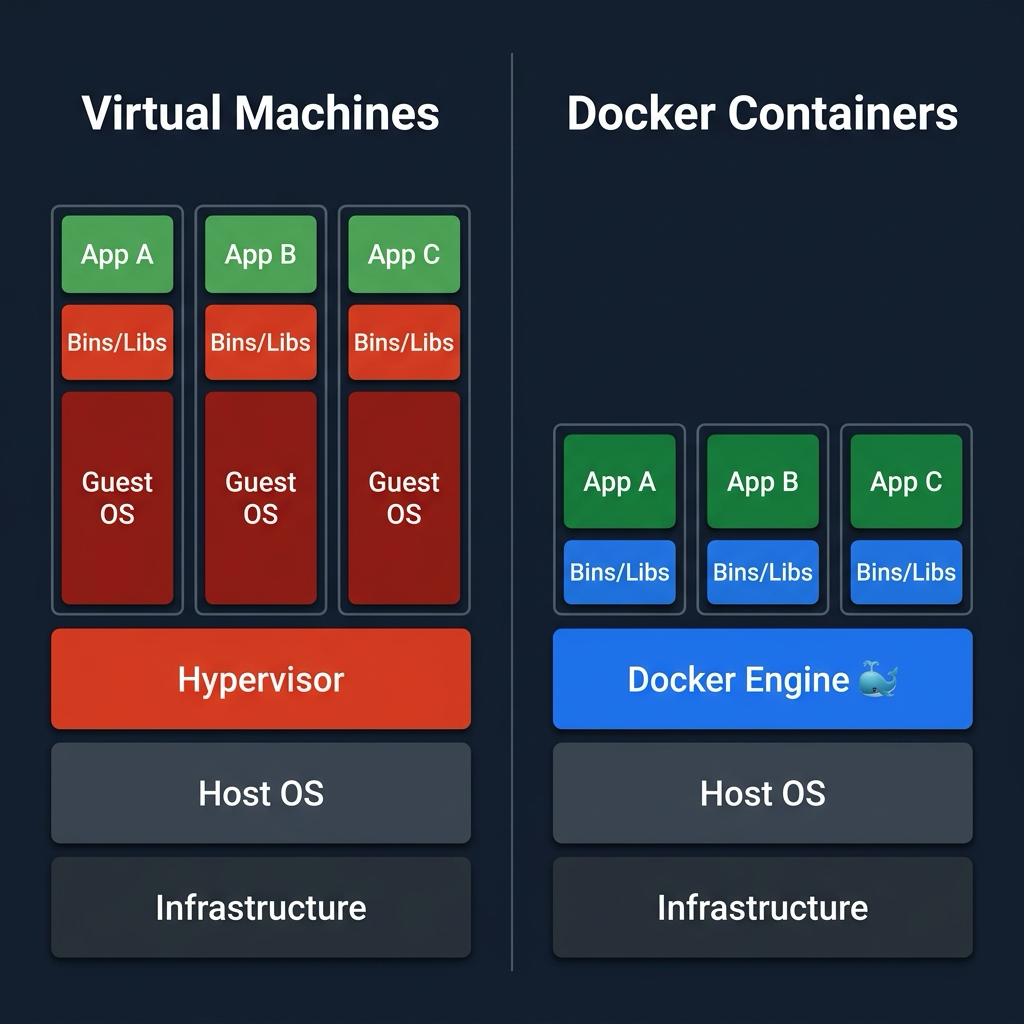
| Term | What it means |
|---|---|
| Image | A read-only blueprint — OS, code, and dependencies bundled together |
| Container | A running instance of an image — isolated, lightweight, and disposable |
| Docker Hub | A public registry where images are stored and shared (like GitHub for images) |
| Docker Engine | The background service that builds images and manages containers |
graph LR
    CLI["🐳 Docker CLI"]-->|API|D["🐳 Docker Daemon"]
    D-->IM["📀 Images"]
    D-->CN["📦 Containers"]
    D-->VL["🪣 Volumes"]
    D-->NT["🌐 Networks"]

    style CLI fill:#dcfce7,stroke:#22c55e,stroke-width:2px,color:#14532d
    style D fill:#dbeafe,stroke:#3b82f6,stroke-width:2px,color:#1e3a8a
    style IM fill:#dbeafe,stroke:#3b82f6,stroke-width:2px,color:#1e3a8a
    style CN fill:#dcfce7,stroke:#22c55e,stroke-width:2px,color:#14532d
    style VL fill:#ffedd5,stroke:#f59e0b,stroke-width:2px,color:#78350f
    style NT fill:#cffafe,stroke:#06b6d4,stroke-width:2px,color:#164e63
When you type a Docker command, the Docker CLI sends it to the Docker Daemon — the background service that manages images, containers, volumes, and networks.
Run docker info to display the system-wide Docker configuration and confirm the daemon is running.
[labuser@container ~]$ docker info
Client: Docker Engine - Community
 Version:    24.0.2
 Context:    default
 Debug Mode: false

Server:
 Containers: 2
  Running: 1
  Paused: 0
  Stopped: 1
 Images: 5
 Server Version: 24.0.2
 Storage Driver: overlay2
...
Run docker version to see the client and daemon versions.
[labuser@container ~]$ docker version
Client: Docker Engine - Community
 Version:           24.0.2
 API version:       1.43
 Go version:        go1.20.4
 Git commit:        cb74dfc
 Built:             Thu May 25 21:52:17 2023
 OS/Arch:           linux/amd64
 Context:           default

Server: Docker Engine - Community
 Engine:
  Version:          24.0.2
  API version:      1.43 (minimum version 1.12)
  Go version:       go1.20.4
  Git commit:       659604f
  Built:            Thu May 25 21:52:17 2023
  OS/Arch:          linux/amd64
  Experimental:     false
Pull and Run Your First Container
docker run is the primary command for starting containers. When an image does not exist locally, Docker automatically pulls it from Docker Hub before starting.
graph TD
    HUB["☁️ Docker Hub"]-->|docker pull|IMG["📀 hello-world"]
    IMG-->|docker run|CNT["📦 Running Container"]
    CNT-->|auto exits|STP["🛑 Stopped Container"]

    style HUB fill:#f3e8ff,stroke:#a855f7,stroke-width:2px,color:#581c87
    style IMG fill:#dbeafe,stroke:#3b82f6,stroke-width:2px,color:#1e3a8a
    style CNT fill:#dcfce7,stroke:#22c55e,stroke-width:2px,color:#14532d
style STP fill:#fee2e2,stroke:#ef4444,stroke-width:2px,color:#7f1d1d| Argument | Meaning |
|---|---|
IMAGE |
The image name and optional tag, e.g. hello-world or hello-world:linux |
Run docker run hello-world to start a container from the hello-world image. Because we didn't specify a tag, Docker automatically looks for the latest tag by default (i.e. hello-world:latest).
Observe the output — Docker pulled the image, created a container, printed a message, and then the container exited automatically.
[labuser@container ~]$ docker run hello-world
Unable to find image 'hello-world:latest' locally
latest: Pulling from library/hello-world
719385e32844: Pull complete
Digest: sha256:4f53e2564790c8e7856ec08e384732aa38cb43fceaf923c0aea3d7a8e5cc698a
Status: Downloaded newer image for hello-world:latest

Hello from Docker!
This message shows that your installation appears to be working correctly.
...
Run docker image ls to view the newly pulled image in your local storage. You should see hello-world with the latest tag.
[labuser@container ~]$ docker image ls
REPOSITORY    TAG       IMAGE ID       CREATED         SIZE
hello-world   latest    d2c94e258dcb   10 months ago   13.3kB
Next, run docker ps -a to view the container you just ran. The -a flag tells Docker to list all containers, including stopped ones. You will notice its status is Exited.
[labuser@container ~]$ docker ps -a
CONTAINER ID   IMAGE         COMMAND    CREATED          STATUS                      PORTS     NAMES
4a2f8b9e1c3d   hello-world   "/hello"   10 seconds ago   Exited (0) 9 seconds ago              nifty_curie
Why did it stop?
A Docker container only stays alive as long as the main process inside it is running. The hello-world container is designed to do just one job: print a welcome message. Once the message is printed, its job is complete, and it gracefully stops itself.
To keep a container running continuously (like a database or web server), we need to run it in the background as a long-running service.
Name Your Container
When we ran the hello-world container in the previous task, Docker automatically assigned it a random, quirky name (like nifty_curie or sleepy_einstein).
While random names are fun, they make it hard to manage containers in a real environment. We use the --name flag to assign a fixed, recognizable name.
| Flag | Meaning |
|---|---|
--name |
Assign a custom, human-readable name to the container |
Run docker run --name my-hello-container hello-world to create a new container with a specific name.
[labuser@container ~]$ docker run --name my-hello-container hello-world
Hello from Docker!
This message shows that your installation appears to be working correctly.
Next, run docker ps -a again. You will now see two hello-world containers — one with a random name, and your new one proudly named my-hello-container.
[labuser@container ~]$ docker ps -a
CONTAINER ID   IMAGE         COMMAND    CREATED          STATUS                      PORTS     NAMES
9d8c7b6a5e4f   hello-world   "/hello"   12 seconds ago   Exited (0) 11 seconds ago             my-hello-container
4a2f8b9e1c3d   hello-world   "/hello"   2 minutes ago    Exited (0) 2 minutes ago              nifty_curie
Run a Container in the Background
By default, docker run runs in the foreground, locking up your terminal as it streams the container's output.
For long-running services like web servers or databases, we want them to run quietly in the background. We use the -d (detached) flag for this.
| Flag | Meaning |
|---|---|
-d |
Detached mode — run the container in the background |
First, run docker ps to confirm you currently have no active containers running.
[labuser@container ~]$ docker ps
CONTAINER ID   IMAGE     COMMAND   CREATED   STATUS    PORTS     NAMES
Next, run docker run -d --name webserver nginx:1.30 to start an Nginx web server in the background. Docker will print a long container ID and immediately return your terminal prompt.
[labuser@container ~]$ docker run -d --name webserver nginx:1.30
Unable to find image 'nginx:1.30' locally
1.30: Pulling from library/nginx
...
f2a715f4e5c3b9d0a1b2c3d4e5f6g7h8i9j0k1l2m3n4o5p6q7r8s9t0u1v2w3x4
Verify the server is running silently in the background by running docker ps again. You will see your webserver container in the active list.
[labuser@container ~]$ docker ps
CONTAINER ID   IMAGE        COMMAND                  CREATED          STATUS          PORTS     NAMES
f2a715f4e5c3   nginx:1.30   "/docker-entrypoint.…"   15 seconds ago   Up 14 seconds   80/tcp    webserver
Understanding Container Lifespans
A container's lifespan is tied directly to the main command it is running. Once that command finishes, the container stops.
To visualize this, let's run a container that simply sleeps for 10 seconds and then exits automatically.
graph TD
    CRT["📀 ubuntu:24.04"]-->|docker run|RUN["📦 Running (sleep 10)"]
    RUN-->|after 10 seconds|STP["🛑 Stopped Container"]

    style CRT fill:#dbeafe,stroke:#3b82f6,stroke-width:2px,color:#1e3a8a
    style RUN fill:#dcfce7,stroke:#22c55e,stroke-width:2px,color:#14532d
    style STP fill:#fee2e2,stroke:#ef4444,stroke-width:2px,color:#7f1d1d
Run docker run -d ubuntu:24.04 sleep 10 to start it in the background.
[labuser@container ~]$ docker run -d ubuntu:24.04 sleep 10
c3b9d0a1b2c3d4e5f6g7h8i9j0k1l2m3n4o5p6q7r8s9t0u1v2w3x4y5z6a7b8c9
Immediately run docker ps to verify the container is running. Look closely at the COMMAND column in the output — you will see "sleep 10" listed as its main process!
[labuser@container ~]$ docker ps
CONTAINER ID   IMAGE          COMMAND                  CREATED         STATUS         PORTS     NAMES
c3b9d0a1b2c3   ubuntu:24.04   "sleep 10"               2 seconds ago   Up 1 second              sleepy_turing
f2a715f4e5c3   nginx:1.30     "/docker-entrypoint.…"   2 minutes ago   Up 2 minutes   80/tcp    webserver
Wait for about 10 seconds, then run docker ps again. You will notice the container has vanished from the active list because its command finished.
Finally, run docker ps -a to view both running and stopped containers. You will see your ubuntu container is now marked as Exited. This proves that when a container's main command finishes, the container stops automatically!
[labuser@container ~]$ docker ps -a
CONTAINER ID   IMAGE          COMMAND                  CREATED          STATUS                      PORTS     NAMES
c3b9d0a1b2c3   ubuntu:24.04   "sleep 10"               15 seconds ago   Exited (0) 4 seconds ago              sleepy_turing
f2a715f4e5c3   nginx:1.30     "/docker-entrypoint.…"   3 minutes ago    Up 3 minutes                80/tcp    webserver
...
Inspect a Running Container
Sometimes you need to know exactly how a container is configured — what its internal IP address is, what ports are open, or what volumes are mounted.
docker inspect returns detailed, low-level metadata about a container in JSON format.
| Flag | Meaning |
|---|---|
--format |
Extract a specific field using Go template syntax |
Run docker inspect webserver to view the full metadata of the running container. It will output a massive wall of JSON text.
[labuser@container ~]$ docker inspect webserver
[
    {
        "Id": "f2a715f4e5c3b9d0a1b2c3d4e5f6g7h8i9j0k1l2m3n4o5p6q7r8s9t0u1v2w3x4",
        "Created": "2023-10-27T10:00:00.000000000Z",
        "Path": "/docker-entrypoint.sh",
        "Args": [
            "nginx",
            "-g",
            "daemon off;"
        ],
        "State": {
            "Status": "running",
            "Running": true,
...
Scrolling through all that JSON is difficult. Instead, we can extract just the information we need.
Run docker inspect --format '{{.State.Status}}' webserver to filter the output and display only the container's current status.
[labuser@container ~]$ docker inspect --format '{{.State.Status}}' webserver
running
Execute a Command Inside a Container
docker exec lets you run a new command inside a container that is already running. This is incredibly useful for debugging, checking configuration files, or opening an interactive shell.
| Flag | Meaning |
|---|---|
-i |
Keep STDIN open (interactive) |
-t |
Allocate a pseudo-TTY (terminal emulator) |
-it |
Combine both — required for interactive shell sessions |
First, run docker exec webserver ls /usr/share/nginx/html to list the files in the Nginx web root.
[labuser@container ~]$ docker exec webserver ls /usr/share/nginx/html
50x.html
index.html
Since the ls command showed us that an index.html file exists, let's view its contents.
[labuser@container ~]$ docker exec webserver cat /usr/share/nginx/html/index.html
<!DOCTYPE html>
<html>
<head>
<title>Welcome to nginx!</title>
...
Now, let's overwrite that file with our own custom text.
[labuser@container ~]$ docker exec webserver sh -c "echo 'Welcome to DevOpsPilot Labs' > /usr/share/nginx/html/index.html"
Now, let's "log in" to the container to verify the file was really changed. Run docker exec -it webserver bash. Look closely at your terminal — the text at the beginning of the line (your prompt) just changed! This proves you are now successfully "inside" the container.
[labuser@container ~]$ docker exec -it webserver bash
root@f2a715f4e5c3:/#
Run ls -l /usr/share/nginx/html and then cat /usr/share/nginx/html/index.html. You will see "Welcome to DevOpsPilot Labs" instead of the original HTML!
root@f2a715f4e5c3:/# cat /usr/share/nginx/html/index.html

Welcome to DevOpsPilot Labs
Finally, type exit and hit Enter to leave the container and return to your normal terminal.
root@f2a715f4e5c3:/# exit
View Container Logs
When a container runs in the background, you can't see its output. docker logs allows you to view the STDOUT and STDERR streams produced by the container. For services like Nginx, this is how you view access and error logs to troubleshoot issues.
| Flag | Meaning |
|---|---|
--tail N |
Show only the last N lines of output |
--follow |
Stream logs in real time (like tail -f) |
Run docker logs webserver to view the container's entire log history.
[labuser@container ~]$ docker logs webserver
/docker-entrypoint.sh: /docker-entrypoint.d/ is not empty, will attempt to perform configuration
/docker-entrypoint.sh: Looking for shell scripts in /docker-entrypoint.d/
/docker-entrypoint.sh: Launching /docker-entrypoint.d/10-listen-on-ipv6-by-default.sh
10-listen-on-ipv6-by-default.sh: info: Getting the checksum of /etc/nginx/conf.d/default.conf
10-listen-on-ipv6-by-default.sh: info: Enabled listen on IPv6 in /etc/nginx/conf.d/default.conf
/docker-entrypoint.sh: Launching /docker-entrypoint.d/20-envsubst-on-templates.sh
/docker-entrypoint.sh: Launching /docker-entrypoint.d/30-tune-worker-processes.sh
/docker-entrypoint.sh: Configuration complete; ready for start up
2023/10/27 10:00:01 [notice] 1#1: using the "epoll" event method
2023/10/27 10:00:01 [notice] 1#1: nginx/1.30.0
...
To make it more manageable, run docker logs --tail 5 webserver to show only the last 5 lines of the log output.
[labuser@container ~]$ docker logs --tail 5 webserver
/docker-entrypoint.sh: Launching /docker-entrypoint.d/30-tune-worker-processes.sh
/docker-entrypoint.sh: Configuration complete; ready for start up
2023/10/27 10:00:01 [notice] 1#1: using the "epoll" event method
2023/10/27 10:00:01 [notice] 1#1: nginx/1.30.0
2023/10/27 10:00:01 [notice] 1#1: built by gcc 12.2.0 (Debian 12.2.0-14)
Stop a Running Container
stateDiagram-v2
    classDef cmd fill:#f3f4f6,stroke:#9ca3af,stroke-width:2px,color:#1f2937
    classDef created fill:#dbeafe,stroke:#3b82f6,stroke-width:2px,color:#1e3a8a
    classDef running fill:#dcfce7,stroke:#22c55e,stroke-width:2px,color:#14532d
    classDef stopped fill:#fee2e2,stroke:#ef4444,stroke-width:2px,color:#7f1d1d
    classDef removed fill:#f3f4f6,stroke:#9ca3af,stroke-width:2px,color:#1f2937

    state "docker create" as d_create
    state "docker run" as d_run

    class d_create cmd
    class d_run cmd
    class Created created
    class Running running
    class Stopped stopped
    class Removed removed

    d_create --> Created
    d_run --> Running
    Created --> Running : docker start
    Running --> Stopped : docker stop
    Stopped --> Running : docker start
    Stopped --> Removed : docker rm
    Running --> Removed : docker rm -f
First, try to delete the container while it's still running by executing docker rm webserver. Docker will reject this action with an error, protecting the running container from accidental deletion. You must stop it first.
[labuser@container ~]$ docker rm webserver
Error response from daemon: You cannot remove a running container f2a715f4e5c3b9d0... Stop the container before attempting removal or force remove
docker stop sends a gentle termination signal to the container, giving it time to shut down gracefully and save its state. Run docker stop webserver to stop the container.
[labuser@container ~]$ docker stop webserver
webserver
Verify it has stopped by running docker ps. You will notice the webserver container is no longer in the active list.
Finally, run docker ps -a to confirm the container still exists on your disk, but its status is now Exited.
[labuser@container ~]$ docker ps -a
CONTAINER ID   IMAGE        COMMAND                  CREATED          STATUS                      PORTS     NAMES
f2a715f4e5c3   nginx:1.30   "/docker-entrypoint.…"   15 minutes ago   Exited (0) 10 seconds ago             webserver
Remove a Container
Stopped containers are no longer running, but they still occupy disk space on your machine. docker rm permanently deletes a stopped container and frees up its resources.
| Flag | Meaning |
|---|---|
| (none) | Remove a stopped container |
-f |
Force-remove a running container (sends SIGKILL immediately) |
Run docker rm webserver to permanently delete the stopped container.
[labuser@container ~]$ docker rm webserver
webserver
Verify the cleanup was successful by running docker ps -a. Look at the list and observe that the webserver container is completely gone.
Bulk Remove Stopped Containers
Removing containers one by one with docker rm is tedious. Docker provides a built-in command to safely bulk-delete all stopped containers at once.
Run docker container prune -f to remove all stopped containers. The -f flag forces the action without prompting for confirmation.
[labuser@container ~]$ docker container prune -f
Deleted Containers:
9d8c7b6a5e4f
4a2f8b9e1c3d
c3b9d0a1b2c3

Total reclaimed space: 0B
Verify the cleanup by running docker ps -a. Your container list should now be completely empty!
Run a Self-Cleaning Container
Even with prune, manually cleaning up containers is repetitive. The --rm flag solves this by automatically deleting the container the moment it stops running. This is perfect for one-shot tasks where you only need the container temporarily.
| Flag | Meaning |
|---|---|
--rm |
Automatically remove the container when it exits |
Run docker run --rm hello-world to start a container, print a short message, and automatically clean it up.
[labuser@container ~]$ docker run --rm hello-world
Hello from Docker!
This message shows that your installation appears to be working correctly.
...
Verify there is no leftover container by running docker ps -a. You will notice the hello-world container you just ran was instantly deleted upon exit!
🧠 Quick Quiz
Which flag is used to run a Docker container in the background (detached mode)?
Which command lists all containers, including both running and stopped ones?
What command is used to completely remove a stopped container?
Practice Live in Your Browser
Don't just read about Docker commands—execute them in real time! Launch a fully-configured, secure Docker sandbox directly in your browser. Practice commands, debug broken containers, and complete timed challenges with instant task validation.
📬 DevopsPilot Weekly — Learn DevOps, Cloud & Gen AI the simple way.
👉 Subscribe here